
FAQ's
Preguntes freqüents sobre maquinari i programari informàtics (també el Suro Virtual).
Escriu alguna paraula clau al camp Cerca i prem el botó.
Pots també cercar per Categoria
Especial | A | B | C | Ç | D | E | F | G | H | I | J | K | L | M | N | O | P | Q | R | S | T | U | V | W | X | Y | Z | TOTES
S
Salar la contrasenyaWhat is password salting? Passwords are stored in Moodle in an encrypted form, called an 'md5 hash'. Password salting is a way of making passwords more secure by adding a random string of characters to passwords before their md5 hash is calculated, which makes them harder to reverse (the longer the random string, the harder you make it). To set a password salt, add the following line to your config.php file: $CFG->passwordsaltmain = 'some long random string here with lots of characters'; The random string of characters should be a mix of letters, numbers and other characters. The Moodle Salt Generator may be used to obtain a suitable long random string. A string length of at least 40 characters is recommended. Note: For security reasons the only way to enable password salting is by editing config.php - there is no way to do so in the Moodle interface. Tip: Keep a note of your password salt somewhere other than config.php to prevent the situation of your password salt being lost and all site users having to go through password recovery to reset their passwords. If for any reason you wish to change the salt, the old salt must be retained in config.php in addition to the new salt. passwordsaltmain should be changed to passwordsaltalt1 (note that the exact expressions must be used) for the old salt as follows: $CFG->passwordsaltalt1 = 'old long random string'; If you change your salt again in the future, you must retain all the previous salts for some time (until every user has logged in at least once, so they start using the new salt). You can use $CFG->passwordsaltalt2, $CFG->passwordsaltalt3, etc. to keep up to 20 previous salts. Warning: If you change the salt and do not retain the old one in config.php you will no longer be able to login to your site! Note: Not Recommended! Once enabled, you should leave password salt enabled. To disable password salting in Moodle, you can delete, comment out, or change the value of passwordsaltmain to "empty" // EXAMPLE: set to empty string
However, you are not done! You must also move the old salt to an "alt" value, just like the "changing the salt" description, above: $CFG->passwordsaltalt1 = 'old long random string'; Importing users from another site If you import users from another Moodle site which uses a password salt, you need to add the other site's salt to config.php too. Upto 20 alternate salts may be added $CFG->passwordsaltalt1, $CFG->passwordsaltalt2, ... $CFG->passwordsaltalt20 How does password salting work? When a password is checked, the code looks for CFG->passwordsaltmain. If set, salt is appended to user's password before calculating the md5 hash. If the unsalted md5 hash of a user's password validates, it is assumed that the salt was set for the first time since the last time the user logged in. The user's password is upgraded, using the salt. The password is salted during the first login after the salt was set in config.php. If neither the unsalted md5 hash, or the salted md5 hash validates, the code looks for up to 20 alternate salts. If you change salts, in order not to orphan existing user accounts, you must enter the old salt into one of the alternate slots. When a user who has an "old salt" password logs in, the first test of their authentication with the new salt will fail... then the code will test any alternate salts, looking for one that allows the password to be proven valid. If a user is deemed valid, the system will upgrade the user's hashed password to the latest salt. Documentació extreta de: http://docs.moodle.org/22/en/Password_salting | |
SAU | |
Si falla màquina virtual del ProxyA la màquina física: 1. Entrar via Webmin 2. Anar a Xarxa > Configuració de xarxa > Interfícies de xarxa Editar opcions: 3. Canviar Adreça IPv4 de eth1 del 192.168.31.254 per 192.168.31.253 (i de eth2 de 192.168.41.254 per 192.168.41.253). Desar-ho. 4. Executar script enrutament.sh de l'escriptori. * En cas de tornar a activar servidor proxy, desfer els canvis d'encaminador per defecte i a l'script enrutament.sh comentar amb # les línies que fan l'enrutament. | |
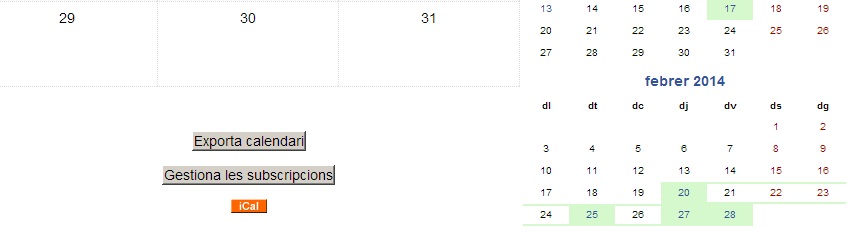
Sincronitzar els calendaris de Google i MoodleI. PER A VEURE ESDEVENIMENTS DEL CALENDARI DEL SURO AL GOOGLE CALENDAR: 1. Vés al calendari del Suro Virtual que vols sincronitzar. 2. Clica al botó Exporta calendari.
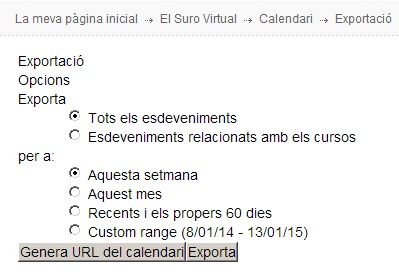
3. Selecciona les opcions que vulguis i pica al botó Genera URL del calendari.
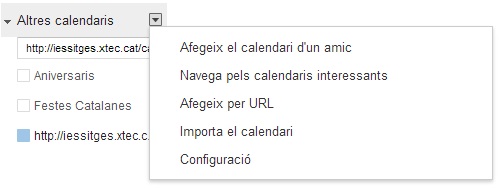
4. Selecciona i copia la URL generada. 5. Ves al teu calendari de Google i clica a Altres calendaris > Afegeix per URL.
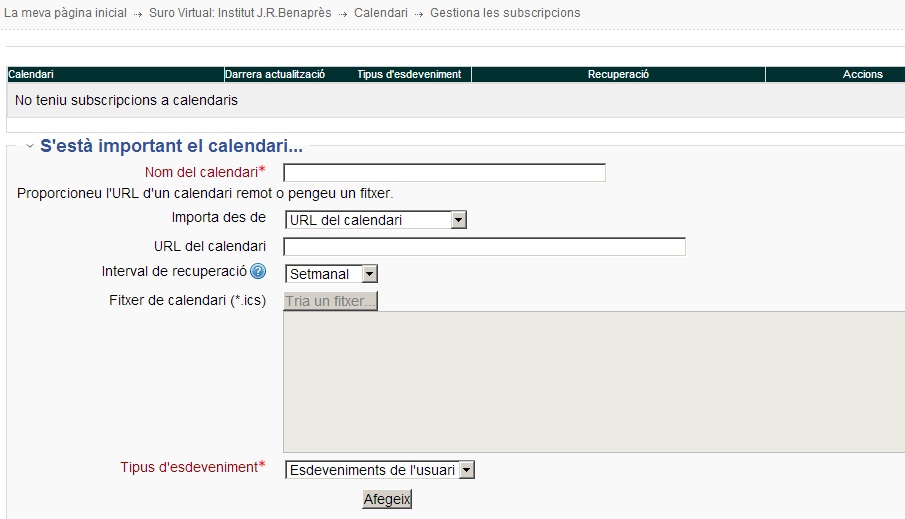
6. Enganxa la URL del teu calendari de Moodle al camp Adreça URL de calendari públic i clica al botó Afegir.
II. PER A VEURE ESDEVENIMENTS DEL CALENDARI DEL GOOGLE AL CALENDARI DEL SURO: 1. Vés al calendari de Google que vols sincronitzar. 2. Pica al botó iCal de l'Adreça privada. 3. Copia l'enllaç que et dona. 4. Ves al calendari de Moodle. 5. Pica al botó Gestiona subscripcions. 6. Enganxa l'enllaç al camp URL del calendari. 7. Ajusta la resta de camps com desitgis.
| |
Só Linkat Toshiba TecraPROBLEMES DE SO AMB LINKAT 3 I PORTATILS TOSHIBA TECRA 1 OBRIR COM A ROOT2 ANAR A LLOCS 3 BUSCAR ETC 4 BUSCAR modprobe.d 5 EDITAR EL FITXER SOUND 6 AFEGIR LA LÍNIA options snd-hda-intel model=toshiba mÉS INFO: http://linkat.xtec.cat/portal_linkat/portal/index.php?module=pnForum&func=viewtopic&topic=2364  | ||
Software per recuperar fitxersPrograma | | ||
Surt "Cannot load pdf content" i no visualitzaProva d'escurçar el nom del fitxer i no fer servir accents, ç, etc. | |
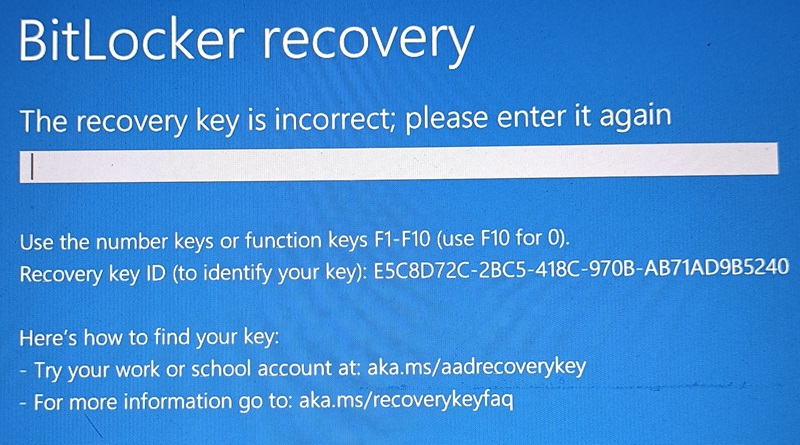
Surt una pantalla blava amb un missatge BitLocker recovery
1. Tanca l'ordinador prement el botó durant 5 [s]. 2. Torna a arrancar l'ordinador.
3. Si s'ha solucionat saltar al punt 10.
4. Amb un altre ordinador anar a l'adreça web que diu a la pantalla (https://aka.ms/aadrecoverykey)
5. Entrar les mateixes dades personals que es posen per entrar a l'ordinador (usuari_xtec@edu.gencat.cat).
6. Al menu lateral anar a Dispositius > Veure claus de BitLocker.
7. Picar al botó Mostrar clau de recuperació del codi que coincideixi amb el que et surt a la pantalla blava (Recovery Key ID)
8. Escriure la clau que et dona al camp de text.
9. Accepta i reinicia.
10. Ja anirà be. | |
Surten línies de codi rares quan envio un missatge des del SuroVés al mòdul:
| |